Hosting FAQ
To change the language and theme in Roundcube, you need to open the Settings task from the main menu, select the Preferences setting, and select the User Interface option from the preferences list.
You can change the language via the Language drop-down menu from the Main Options sub-section. Roundcube will try to select the language automatically for you when you log in based on your computer's operating system language.
To change the theme in Roundcube, you need to use the radio button from the Interface Skin sub-section.
The following official Roundcube themes are supported:
Elastic
(Roundcube's first official responsive skin with support for desktops, tablets, and phones)
Larry
You can find more screenshots of these themes on Roundcube's website.
Webmail Classic
To change the language in Webmail Classic, follow these steps:
- Select the Options tab from the main menu.
- Select the General Options option.
- Choose your preferred language from the Interface language drop-down menu at the bottom of the page.
- Finally, click on the Update button to apply the new language.
You can change the theme in Webmail Classic by using the theme drop-down menu located in the top-right corner of the screen. This menu is available on all Webmail Classic pages.
The following themes are available for use in Webmail Classic:
Default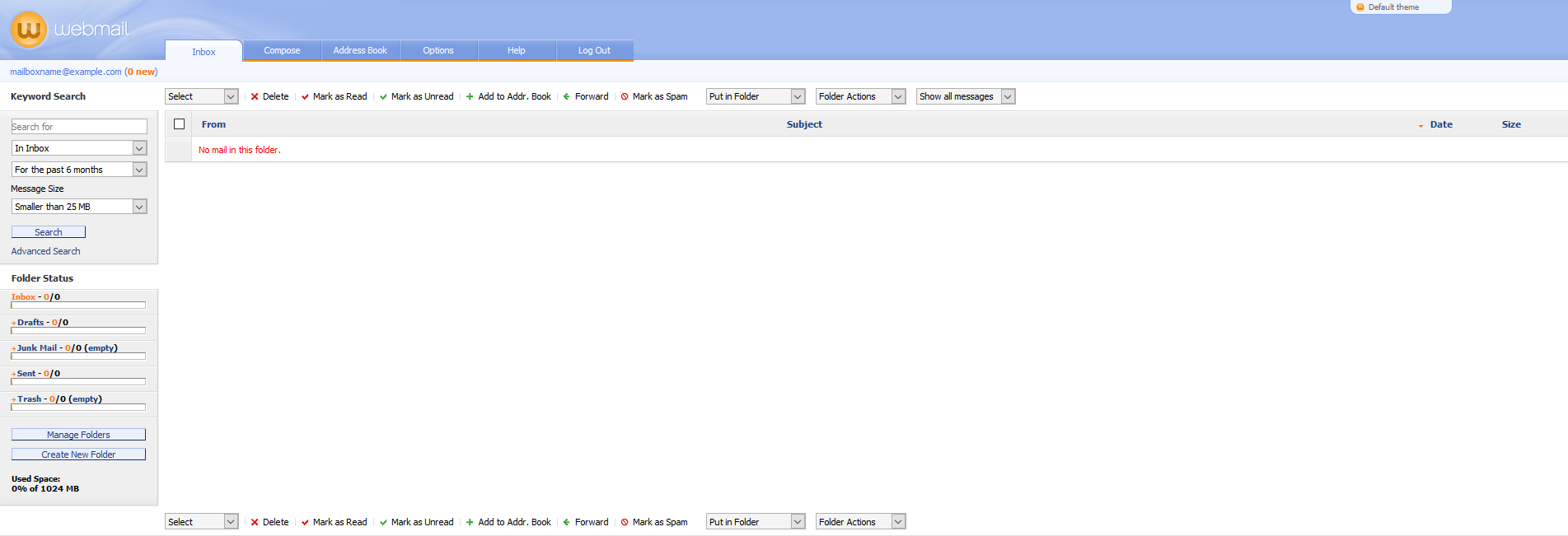
Green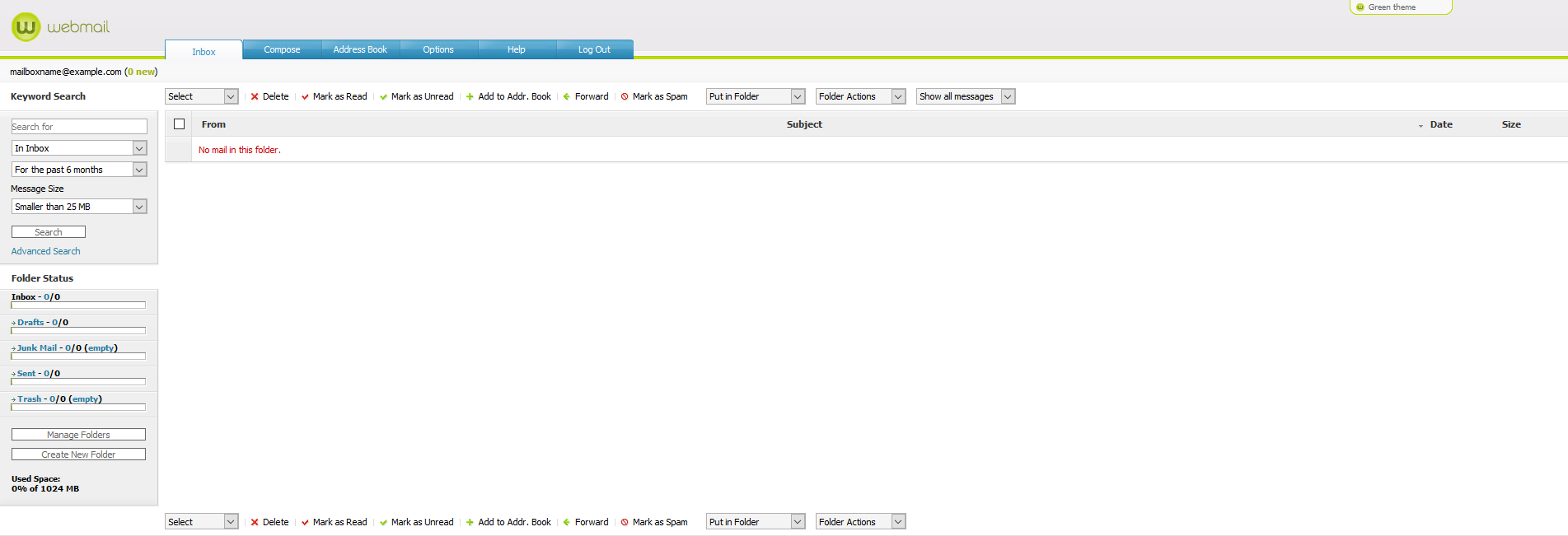
Blue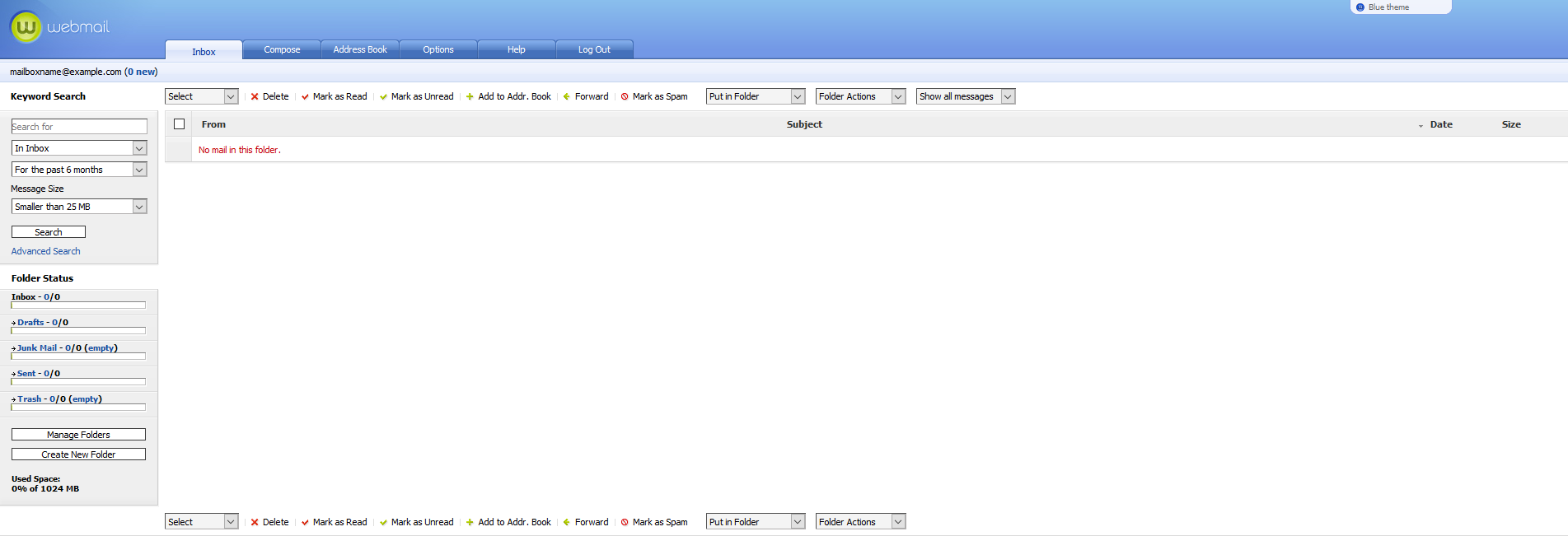
Purple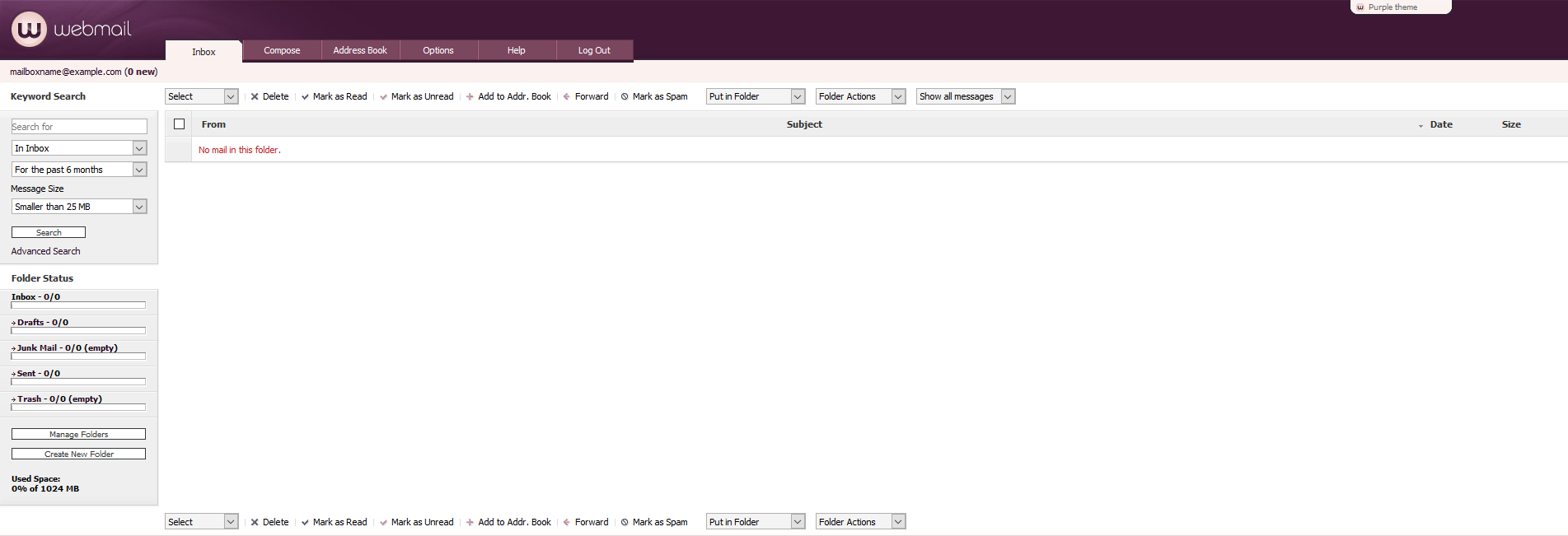
Magenta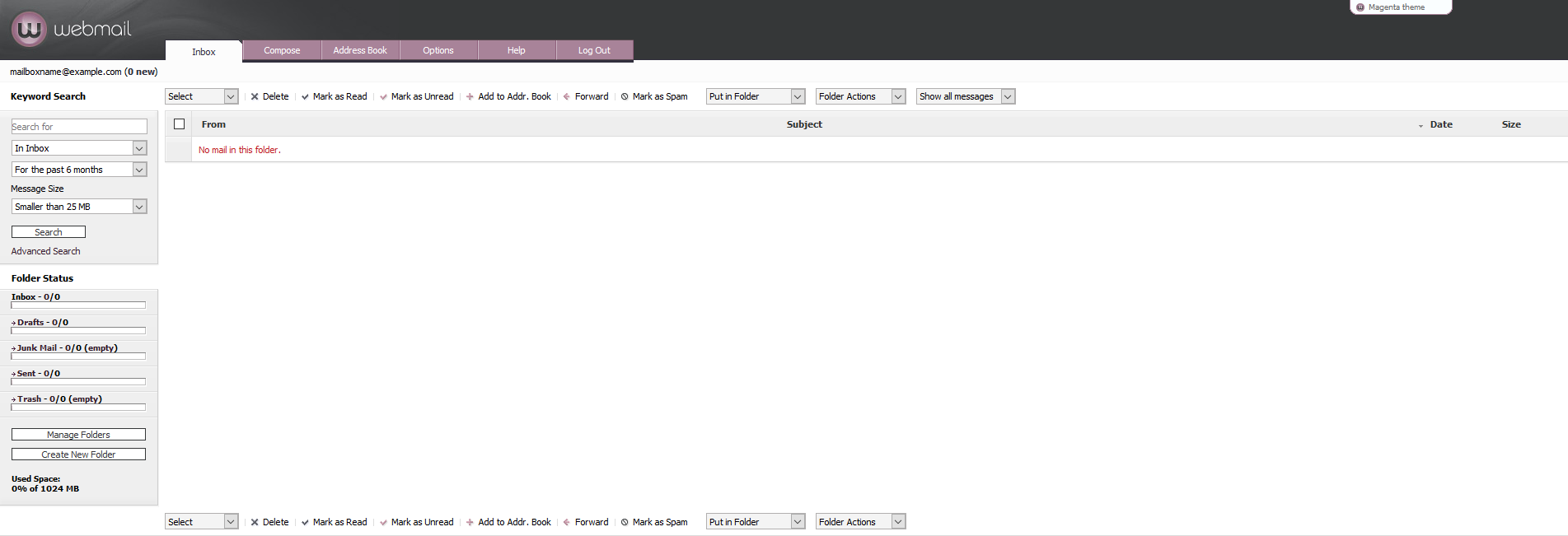
Grass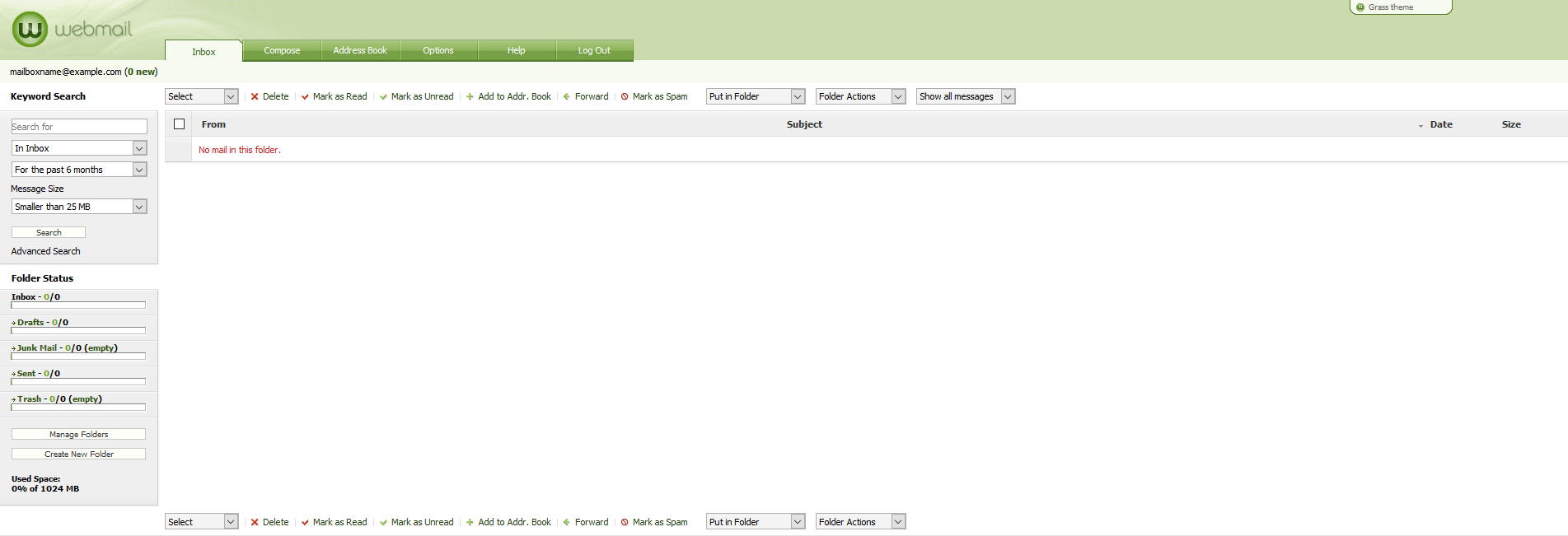
Grey
Wheat
Black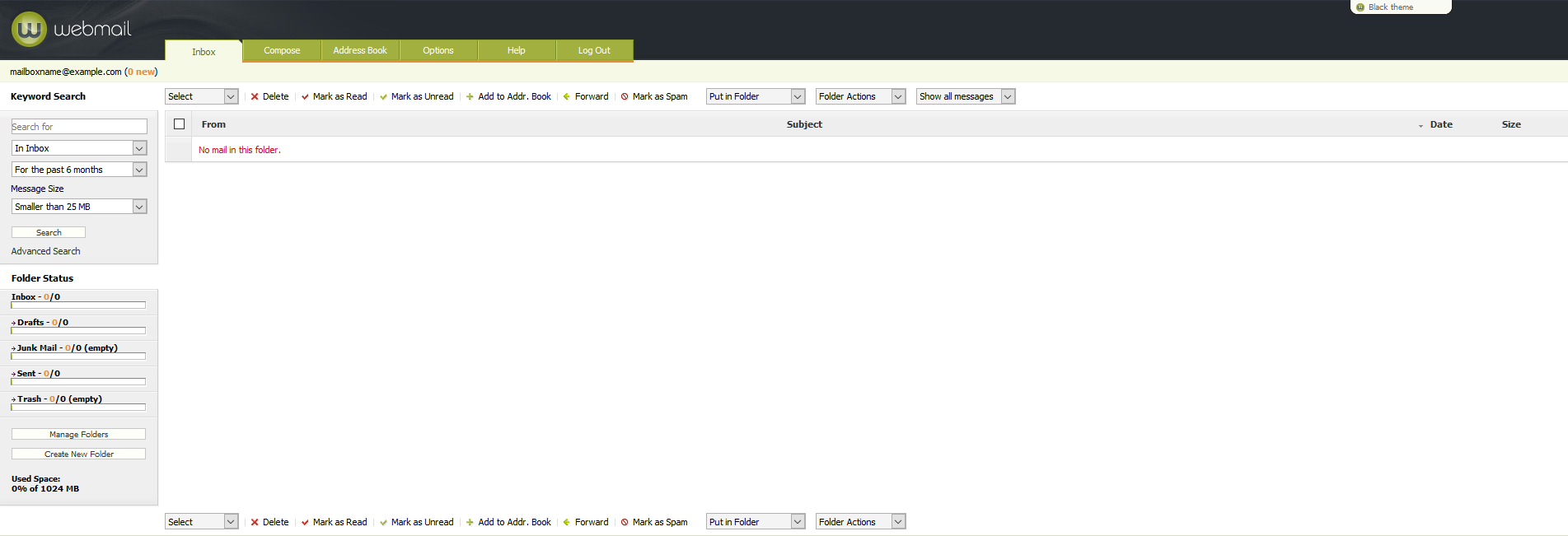
Steel